
Basics & Beyond policies
Terms of Service
Understand registration, access, attendance, credit, refunds, transfers, troubleshooting, conduct, course-content, and website-use policies before registering.
At a glance
What to know
- CPE and CE credit require verified attendance and required participation.
- Refund timing depends on when a cancellation request is received.
- On-demand access is generally non-refundable after access begins, except for promptly reported technical problems.
Registration and access
After registration and payment are completed, the attendee receives a confirmation email with event details. Webinar attendees must also complete the GoToWebinar registration step so personalized reminders and the join link can be delivered.
- Same-day registrations are accepted only when space remains; materials and access links cannot be guaranteed for late registrations.
- Waitlisted registrations are charged only when confirmed; otherwise the fee is not charged or is refunded.
- A recording may be available to a paid registrant for review, but it does not create live CPE credit unless offered as a separately eligible on-demand course.
CPE, CE, attendance, and certificates
Sessions follow the published IRS and NASBA standards applicable to the individual program. Credit is based on both verified time and participation.
- One CPE or CE credit equals 50 minutes of verified real-time attendance.
- Attendees must complete at least three polling questions per hour when required for the live session.
- The attendee must remain logged in for the required portion of the program and use the registered email identity.
- No-show participants may request materials, but materials alone do not qualify for credit.
- Certificates are normally issued after attendance and participation are verified; replacement requests are generally handled within two business days.
- A refunded registration is not eligible for credit, and any related certificate is void.
Refunds, satisfaction, and transfers
Email [email protected] as soon as possible when plans change. Refund eligibility is based on when the cancellation request is received.
- If Basics & Beyond cancels, choose a full refund or transfer to a future course of equal value.
- A completed attendee who is dissatisfied may request transfer into a comparable session under the satisfaction guarantee.
- When a refund is unavailable, Basics & Beyond may approve applying the registration value to a future seminar.
- A substitute attendee must be identified in advance with correct account and payment information.
| Cancellation timing | Refund |
|---|---|
| 14 or more days before the event | 100% |
| 8–13 days before the event | 75% |
| 1–7 days before the event | 50% |
| Same day or no-show | No refund |
On-demand and self-study courses
On-demand and self-study courses become non-refundable once access begins. Report a first-access technical problem within 36 business hours so support can troubleshoot and determine whether an exception is appropriate.
Special cases and operational policies
Basics & Beyond attempts to hold every scheduled program. Weather, emergencies, speaker availability, or operational needs can require updated instructions or changes.
- Group pricing begins with three attendees; attendees above the published maximum continue at the last listed per-person rate.
- Each group attendee must satisfy the same identity, attendance, and participation requirements.
- Volunteer speakers may receive complimentary same-day attendance or approved discounts for an additional day.
- Event photos or video may be used for website, email, and social-media promotion.
Conduct, content, and website use
Basics & Beyond maintains a respectful learning environment. Harassment, discrimination, abusive conduct, or substantial disruption may result in removal without refund.
- Use the website and services lawfully and provide accurate registration and payment information.
- Do not share, resell, copy, or redistribute course materials without permission.
- Certificates are issued only after verified program requirements are met.
- Educational content is not legal, tax, or professional advice for a specific client.
- Site content and course materials belong to Basics & Beyond or its licensors.
- To the extent permitted by law, maximum liability is limited to the registration fee paid for the affected offering.
- These terms are governed by Florida law and may be updated prospectively.
Virtual seminar troubleshooting
Use this guide for webinar access, seminar-date changes, polling questions, audio, screen visibility, reminders, GoTo setup, replays, PDFs, and certificates.
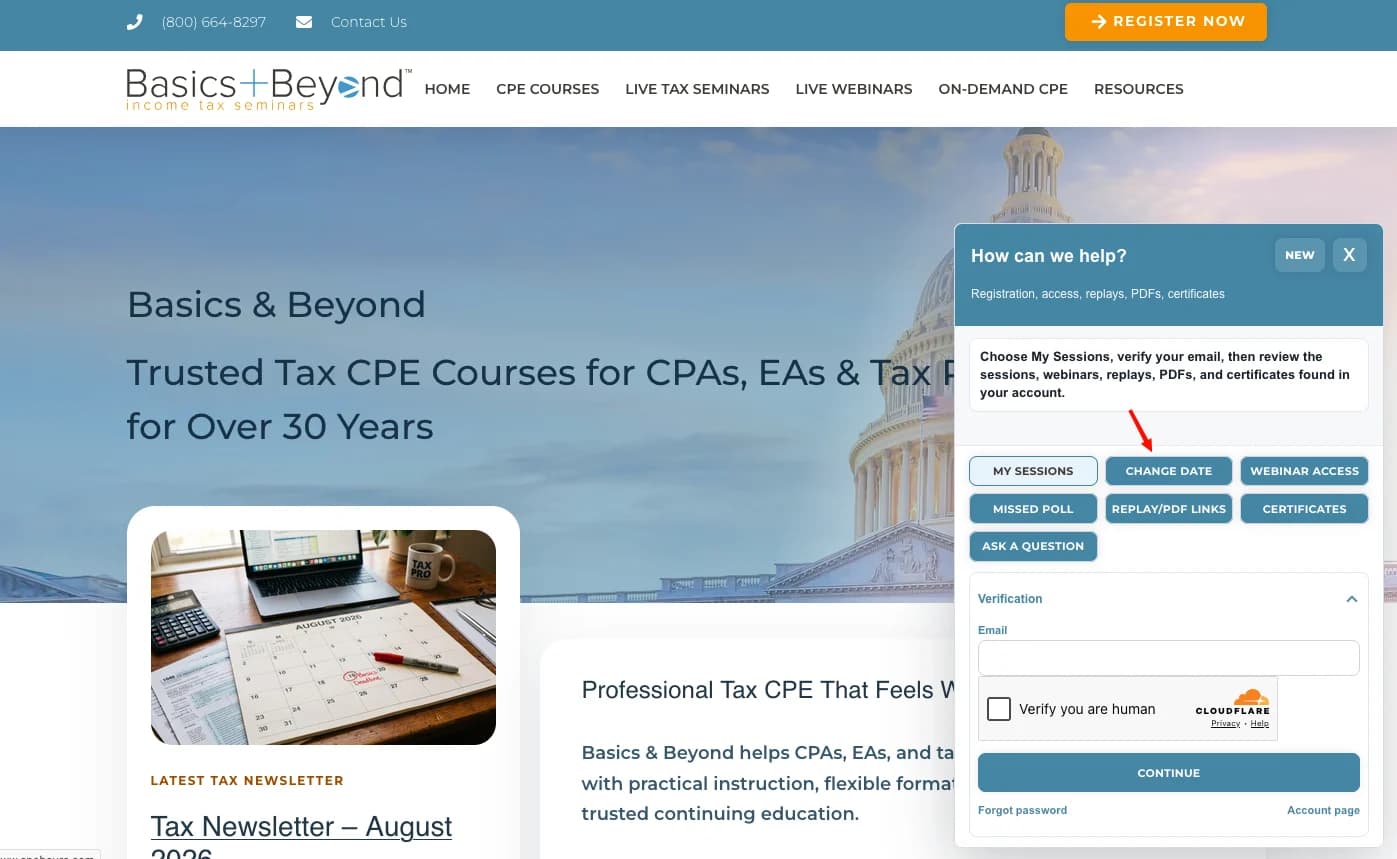
For account-specific information, open Need Help or the attendee account, enter the email used for registration, complete Cloudflare Turnstile, and enter the six-digit verification code. No separate username or password is required.
- Before the session, confirm that GoTo opens and that your speaker output works.
- Keep the personalized GoTo webinar window open so attendance and polling can be recorded.
- If a connection or polling problem occurs, rejoin promptly and report it through GoTo Questions to create a time-stamped record.
- When contacting support, include the attendee name, registration email, and session title.
Support guide
Select the problem that most closely matches what you are seeing.
01How do I register and receive webinar access information?
Choose the webinar or seminar through the current checkout. After registration is complete, confirmation and reminder messages are sent for the selected program.
GoToWebinar messages normally come from [email protected]. Check spam, junk, Promotions, and focused-inbox folders when a confirmation is not visible.
- Complete the separate GoToWebinar registration step when the confirmation requests it.
- Keep the GoTo confirmation because it contains the personalized Join Webinar link.
- Use Need Help → Webinar Access if the message cannot be located.
02How do I change a seminar date?
Open Need Help and choose Change Date, or open the attendee account directly. Verify the registration email with Turnstile and the six-digit code, then choose an available date for the applicable seminar.
Only dates displayed by the registration system are available. Confirm that the new date appears in the registration record before closing the page.
- Enter the email used for the registration.
- Complete the human-verification check and request the six-digit code.
- Enter the current code, open the registration, and choose the new available date.
- Submit the change and confirm the updated date in the attendee account.
03What must I do to earn live CPE or IRS CE credit?
Each credit hour requires at least 50 minutes of verified real-time attendance and the required participation for that hour.
Replays and recordings are for review only and do not earn live-session credit. On-demand IRS CE is governed by its separate course-completion requirements.
- Join with the same email identity used for the registration.
- Remain connected for the required attendance time.
- Answer at least three polling questions per credit hour when required.
- Keep the GoTo window active so attendance and participation can be recorded.
04I cannot see a polling question, or I missed one. What should I do?
First return to the GoTo app or browser tab and check whether the poll opened behind another window. If the poll still does not appear - or the internet connection dropped - close GoTo and reopen the same personalized Join Webinar link.
After reconnecting, remain in the webinar, answer the remaining polls, and immediately use the GoTo Questions box to identify the missed poll and report that you reconnected. This creates a time-stamped record for attendance review.
- Check for a hidden GoTo or poll window.
- Reconnect with the same personalized join link.
- Report the issue immediately through GoTo Questions.
- Contact support if polls remain unavailable or you are concerned about certificate eligibility.
05Where is my personalized webinar join link?
The personalized link is in GoToWebinar confirmation and reminder emails, generally delivered about 24 hours and one hour before the webinar.
If the message is unavailable, open Need Help → Webinar Access or the attendee account. Enter the registration email, complete Turnstile, request the six-digit code, and open the webinar-access record.
06How do I install or access GoTo?
You may join through the GoTo desktop application or supported browser experience. Use the personalized join link whenever possible so the correct session and attendee identity are carried into GoTo.
Install the appropriate version before the program and allow the browser or operating system to open GoTo when prompted.
07I have no sound. What should I check?
Audio problems are usually caused by a blocked browser permission, the wrong output device, another meeting application holding the device, or duplicate audio connections.
- Confirm that the browser allows sound and the tab is not muted.
- Check the computer output device and volume.
- Close Zoom, Teams, OBS, or other applications using the audio device.
- In GoTo settings, select the correct speaker and microphone.
- Refresh the browser or rejoin; then try an updated Chrome or Edge browser if needed.
- Restart the computer when the device is still unavailable.
08I cannot see the screen, or the slides are not advancing.
Confirm that the webinar window is not hidden behind another application. In a browser, allow the requested pop-up and reopen the personalized join link.
If slides appear frozen, refresh the browser - F5 on Windows or Command-R on a Mac - or leave and rejoin the session. Current versions of Chrome, Edge, or Firefox generally perform best.
09I hear an echo or feedback.
Close duplicate webinar tabs and disconnect one of the audio sources if both telephone and computer audio are active. Headphones usually prevent speaker feedback. Refresh or rejoin after correcting the audio source.
10Where do I find session PDFs, replays, receipts, and certificates?
Open the corresponding choice in Need Help or use the attendee account. Account-specific records require the registration email, Turnstile, and the current six-digit verification code.
A replay is available only when one was recorded and released. Viewing a replay does not create live CPE or CE credit.
11What if I miss the session or still need help?
Paid registrants may request a recording when one is available, but the replay does not qualify for live-session credit.
Use the GoTo attendee guide for platform help. For registration, attendance, polling, replay, PDF, or certificate questions, email support or call during business hours or a live event.
Continue